

Workspace settings
Settings, then Workspace, holds what applies to everything the workspace makes. Its brand heads the reports, emails and exports you send out. Its AI instructions tell chat, the report builder and agents who you are and how results should look. The page also holds the email domains, the region and the time zone.
Who can do this: admins and owners. Everyone else in the workspace sees the settings but cannot save a change.
Set the brand
- Open Settings, then Workspace.
- Under Brand, enter the Name that heads your reports. Emails, PDF exports, share links and embeds show it with the logo.
- Pick an Accent color. It colors links and highlights in emails and PDF exports. The round arrow next to it (Use default color) brings back the default.
- Select Save.
- Under Logo, select Upload, or Replace for a new logo, and choose a PNG or WebP file of at most 2 MB, with a transparent background. The logo is saved as soon as it is uploaded.
Write the AI instructions
-
Open Settings, then Workspace.
-
Under AI instructions, write in Instructions who you are and how you work: your hotels, house rules and what to leave out.
-
Select Output style. Write how results should look: formats, naming and chart colors.
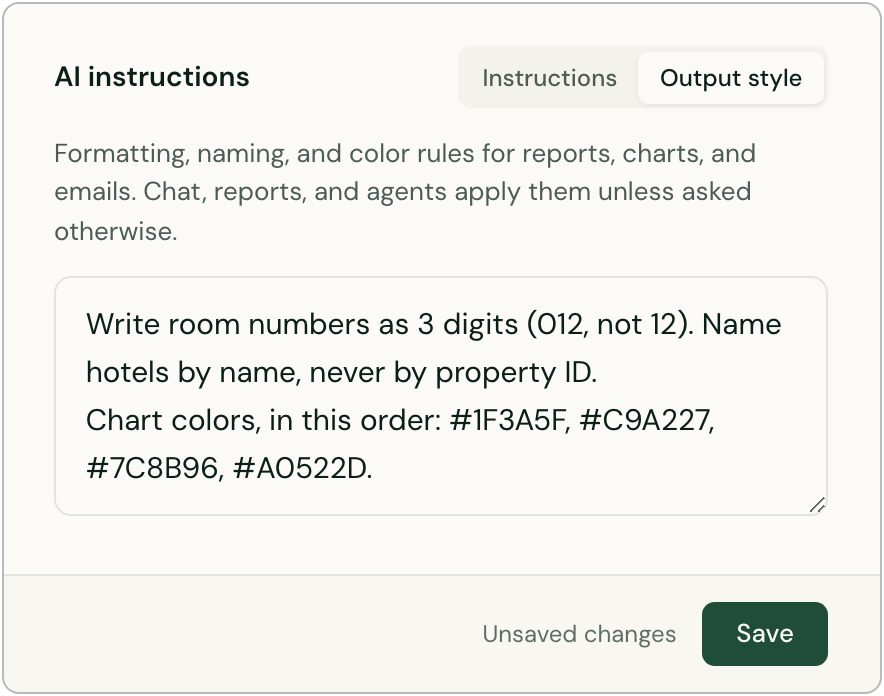
The Output style tab of the AI instructions, with an example. -
Select Save. It saves both fields.
Good to know
- Each field holds up to 4,000 characters. Chat, the report builder and agents read both. A request in chat or an agent's own instructions can still ask for something else.
- The accent color does not color charts. Chart colors come from the Output style or from your request. See Chart colors.
- Chat and the report builder know the brand, the AI instructions, the region, the time zone and the workspace's spend limit. They also know which of them are empty.
- Email domains connects a domain of yours through its DNS settings. Its addresses are then added in Channels, where you choose the agent that answers each one.
- The region and the time zone are set when the workspace is created and cannot be changed. Schedules, report days and every time in the app use the time zone. See Workspaces and billing accounts.