

Read the security history
Who can do this: admins of the workspace.
The security history, also called the audit log, lists who changed members, access and security settings in a workspace, newest first. Examples are changes to its sign-in rules, suspended members, service accounts, role mappings and every visit by Discontinue support.
Steps
-
Open Settings, then Security, then History.
-
Each row shows what happened and, when it concerns a person, whom. Under it are who did it and the IP address it came from. The date and time are on the right.
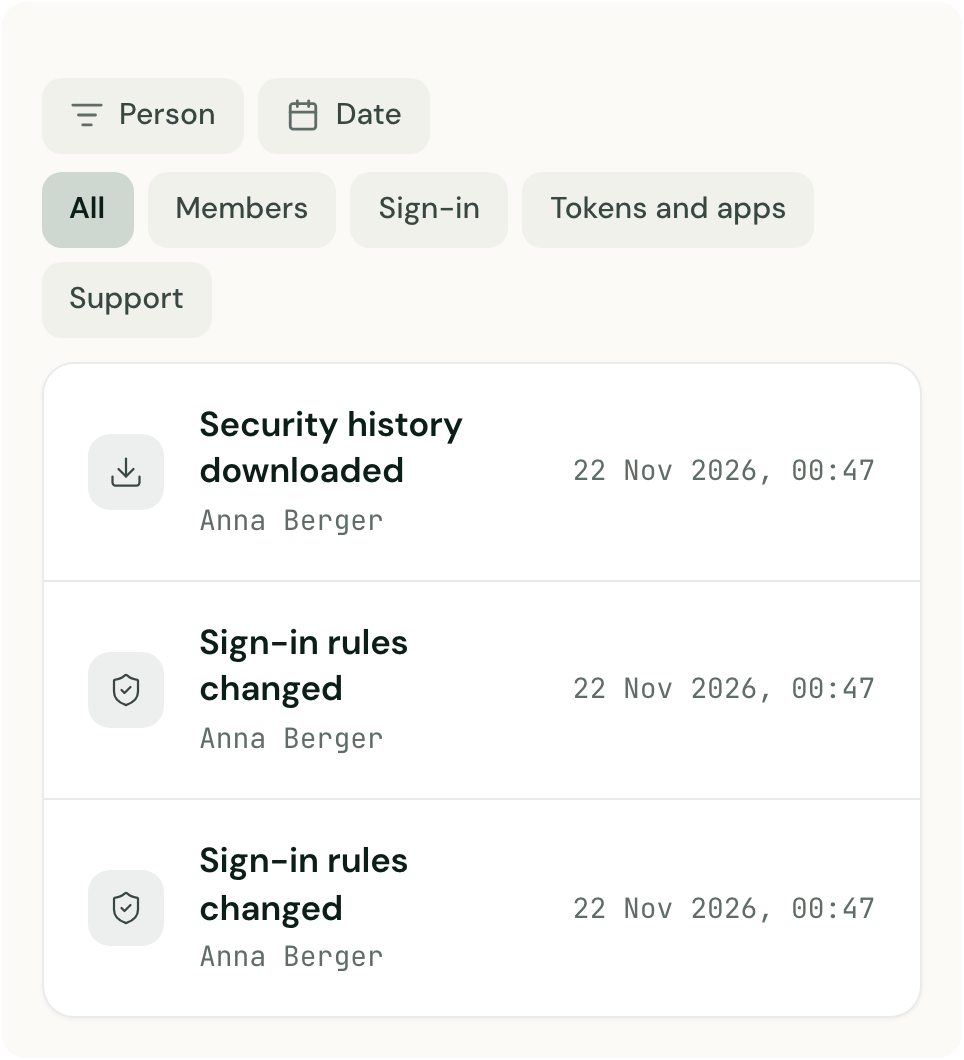
The newest events of a workspace. -
To narrow the list, choose a group: Members, Sign-in, Tokens and apps or Support. Person picks one person, Date a date range. All shows every group again.
-
Select Load more at the end of the list for older events.
-
To keep a copy, select Download, then Spreadsheet for a CSV file or Log file for one event per line. You confirm it's you if your last sign-in is older than 10 minutes. The download itself is recorded as "Security history downloaded".
Good to know
- Sign-ins are recorded for the account, not for a workspace. They do not show in a workspace's history.
- Events are kept for 60 days.
The rules behind this task are in the reference, under Audit log.