

Decide what people must show in a workspace
Who can do this: admins of the workspace.
The rules apply to everyone who works in the workspace, guests from other companies included. They are checked on every request, not only at sign-in.
Steps
-
Open Settings, then Security. Access opens.
-
In the tile Sign-in, choose the Required sign-in: Any sign-in, Two-factor or Company sign-in. The last one needs a tested company sign-in; until then it says Not set up yet.
-
Optionally, enter a number in Sign in again after, in hours. A browser that signed in longer ago is asked to sign in again before it may enter.
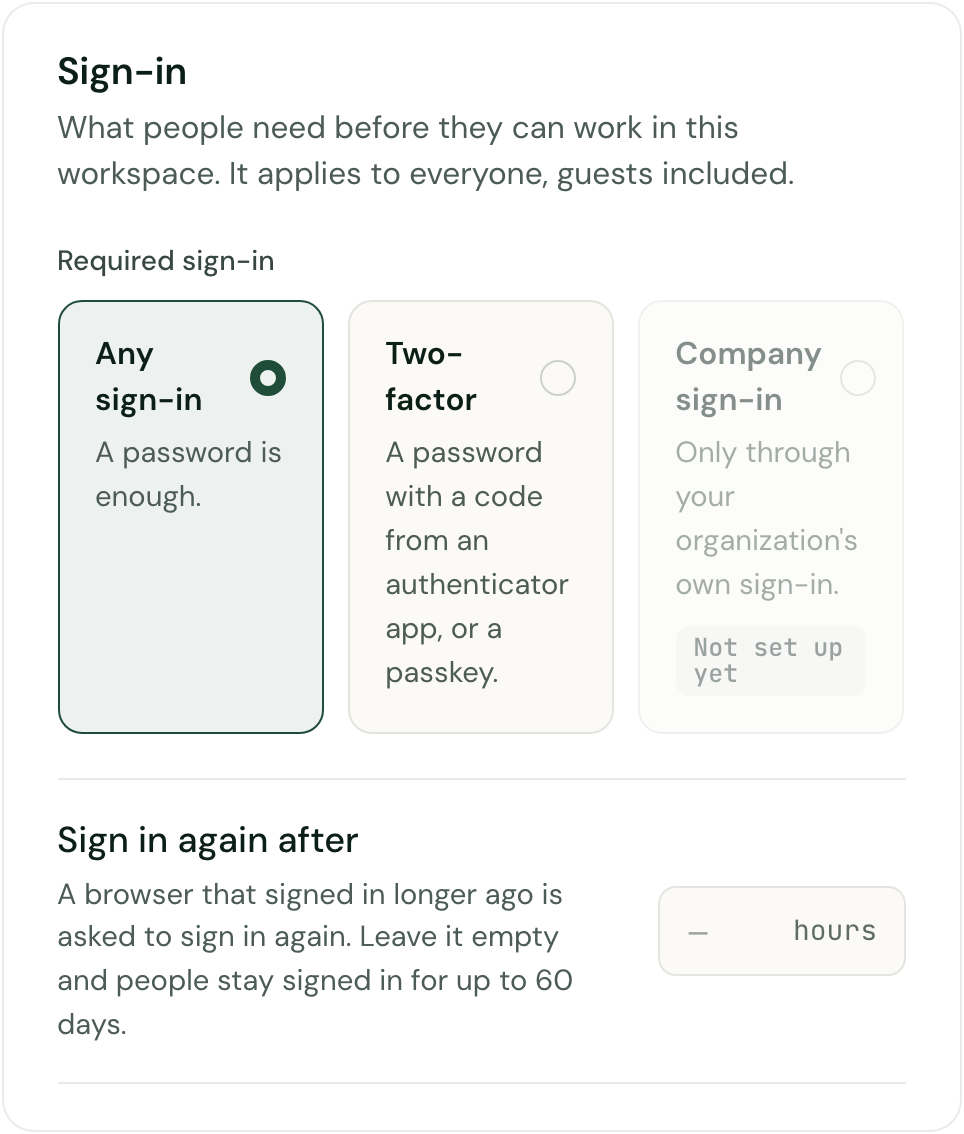
The tile Sign-in under Access. -
Turn off API tokens or AI assistants and apps to keep them out of this workspace.
-
With Company sign-in, select Add person under Exceptions for people who may come in with two-factor instead, such as a guest without an account at your company sign-in.
-
Select Save. It is available once something changed. You confirm it's you if your last sign-in is older than 10 minutes. "Sign-in rules saved" appears.
Good to know
- A person who no longer meets the rules is asked at their next step to sign in again, confirm it's you or use the company sign-in. They come back to the same page afterwards.
- When the workspace belongs to an organization, a note in the tile names it and its minimum. You can only make the rules stricter.
- The tile Support access says whether Discontinue staff may enter the workspace. Every visit by staff shows under History.
The rules behind this task are in the reference, under Workspace access.