

Set up company sign-in
Who can do this: admins of the organization. You need an app registration at your provider with its client ID and secret, and a verified domain.
Steps
-
At your provider, create an app for Discontinue that signs in with OpenID Connect. Note its client ID and client secret.
-
Open discontinue.dev/org, select your organization and open Sign-in.
-
Under Add a provider, choose the Provider: Microsoft Entra ID, Okta, Google Workspace, Keycloak or OpenID Connect.
-
For Entra ID, enter the Directory (tenant) ID. For Okta, Keycloak and OpenID Connect, enter the Issuer, the address your provider names as its issuer.
-
Enter the Client ID, the Client secret and, optionally, the date in Secret expires on.
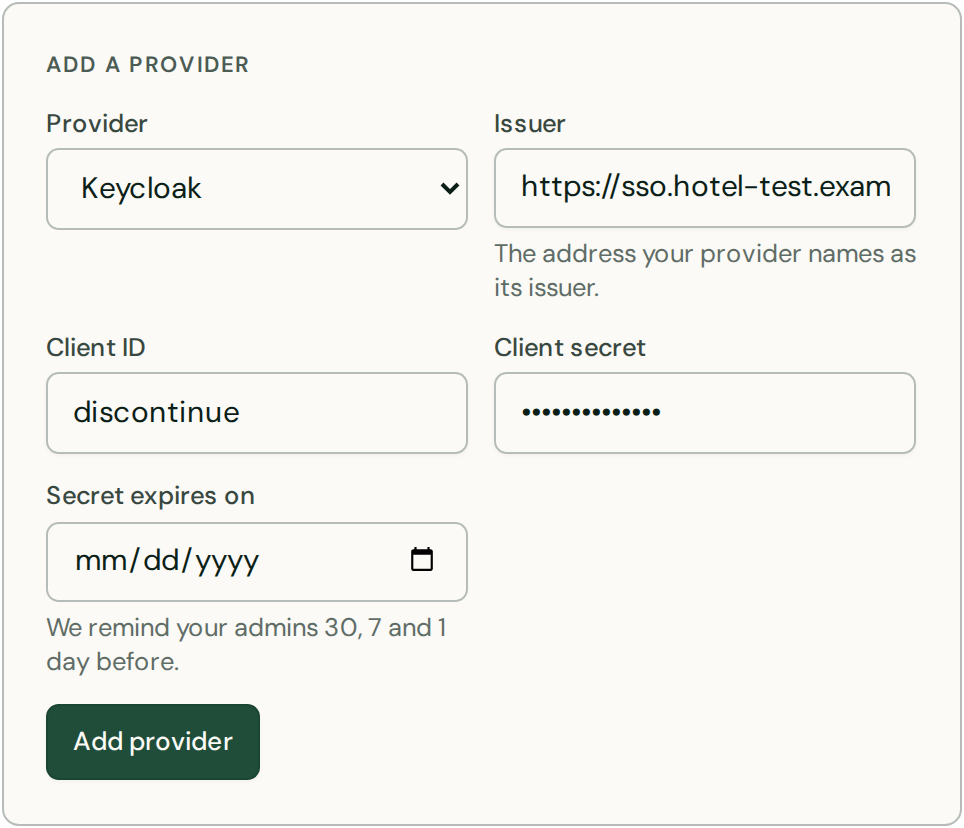
The form for a new provider, filled in for Keycloak. -
Select Add provider. You confirm it's you if your last sign-in is older than 10 minutes. The provider shows with Not tested.
-
Copy the address under Register this redirect address at your provider: and add it to the app at your provider.
-
Select Test sign-in and sign in at your provider. Your provider account is linked to yours, and the provider shows Verified.
-
If your provider asks everyone for a second factor, select Confirm next to "A sign-in here counts as one factor". A sign-in through it then counts as two factors.
Good to know
- People on your verified domains sign in with Continue with, followed by your organization's name, once your sign-in rules require it.
- A person on a verified domain who has no account gets one at their first sign-in through your provider.
- A new address, client ID or secret under Edit needs a new test sign-in.
If something goes wrong
- "We could not read your provider's sign-in settings at that address. Check the issuer.": the issuer is wrong, or the provider cannot be reached over https.
- "The client secret has expired.": select Edit and enter a new secret. Until then nobody signs in through the provider.
The rules behind this task are in the reference, under Company sign-in.