
Confirm it's you
Who can do this: everyone with an account. You need the password, code or passkey you sign in with.
Some changes give or change access, such as a new API token or a new admin. Discontinue asks for one fresh proof that it is you before them, when your last proof is older than 10 minutes.
Steps
-
Make the change, such as Create token. The page Confirm it’s you opens instead.
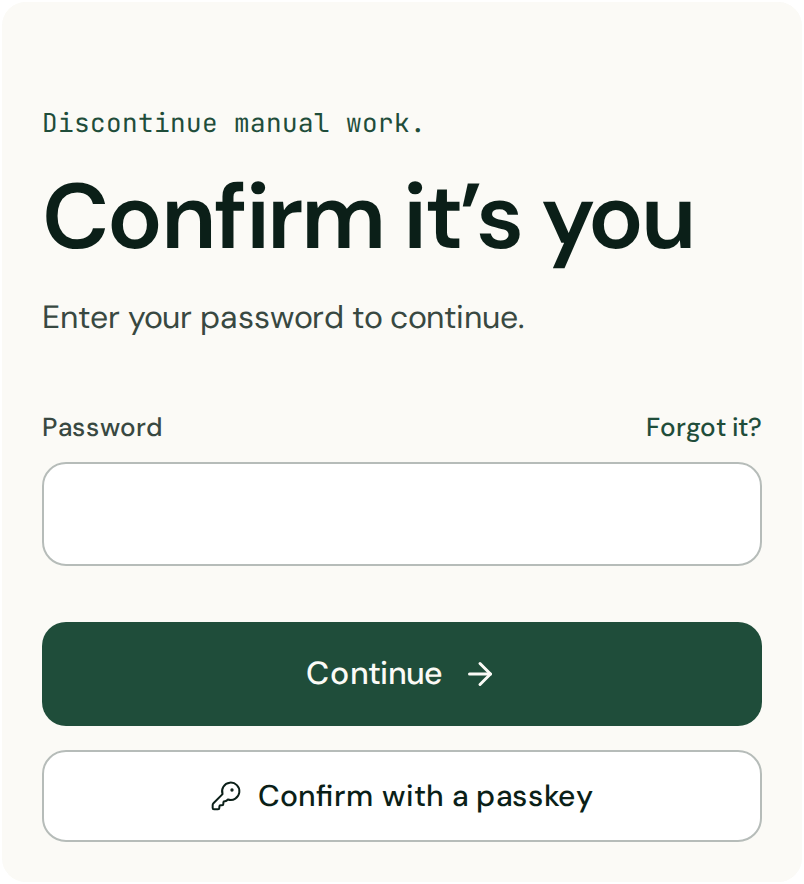
The step-up page asks for one way to sign in. -
Enter what the page asks for and select Continue, or select Confirm with a passkey. With an authenticator app, the page asks for a code instead of the password.
-
You are back on the page you came from. The change was not made yet.
-
Make the change again. It goes through without another question for the next 10 minutes.
Good to know
- Anything you typed into a form before the question is gone. Type it again.
- Your session stays open. Confirming adds proof to it and starts no new sign-in.
- Your organization may ask you to confirm through its own sign-in instead.
If something goes wrong
- After 5 wrong codes, Discontinue signs you out, and you sign in again.
The rules behind this task are in the reference, under Confirming it's you, with every change that asks.