

Turn on two-factor authentication
Who can do this: everyone with an account. You need an authenticator app on your phone, such as Google Authenticator, Authy or 1Password.
With two-factor authentication, a sign-in with your password also asks for a 6-digit code from the app.
Turn it on
-
Select your name at the bottom of the sidebar. Account opens. Select Security.
-
Under Two-Factor Authentication, select Enable two-factor authentication. If you last signed in more than 10 minutes ago, confirm it's you first.
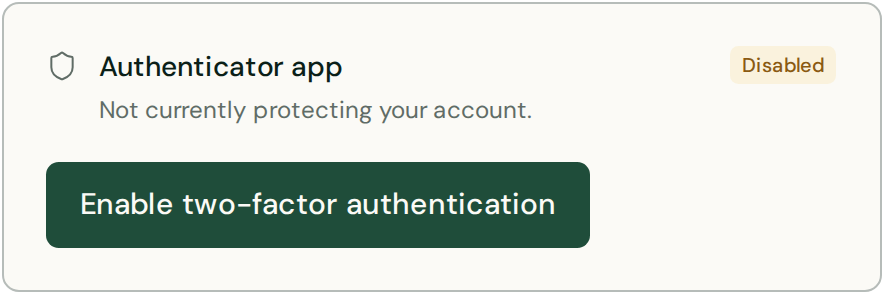
The authenticator card while two-factor authentication is off. -
Scan the QR code with your app. If you cannot scan it, select Can't scan? and type the secret into the app.
-
Enter the 6-digit code that the app shows, then select Verify & Enable.
-
Your recovery codes appear once. Select Copy all codes and keep them somewhere safe, then select Done.
Turn it off
- Open Account, then Security.
- Under Disable two-factor authentication, enter your current password, if you have one, and a code from the app.
- Select Disable 2FA. Your other browsers are signed out.
Good to know
- Each recovery code works once. Use one when you don't have your phone.
- A passkey counts as two factors on its own. It never asks for a code.
- Your organization can require a second factor. Without one, Discontinue opens Security with "Your organization requires a second factor" until you set one up.
If something goes wrong
- "Invalid code": check the time on your phone. Codes change every 30 seconds.
- After 5 wrong codes, the sign-in starts again from your email address.
The rules behind these tasks are in the reference, under Sign-in methods.