

Decide how your people sign in
Who can do this: admins of the organization. You need a verified domain.
The sign-in rules apply to every account on your verified domains, in every workspace it uses, also outside your organization.
Set your sign-in rules
-
Open discontinue.dev/org, select your organization and open People.
-
Under How your people sign in, choose Any method or Only these.
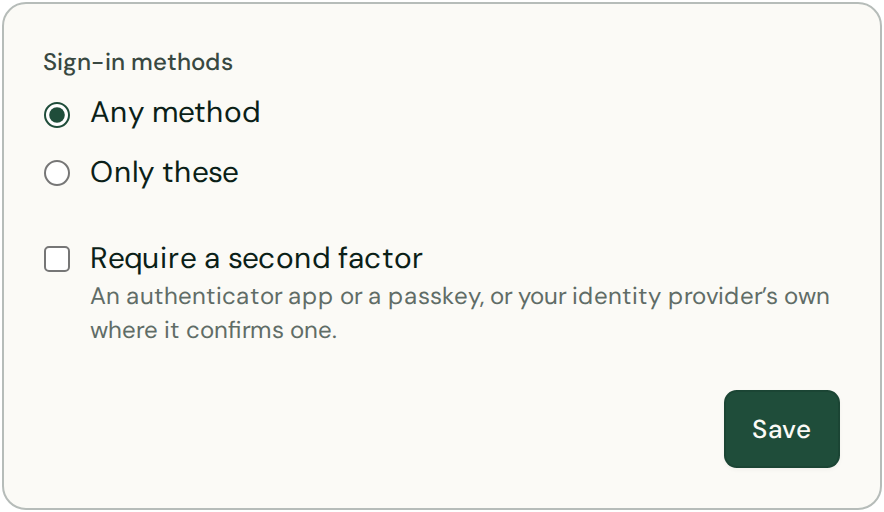
The sign-in rules before any are set. -
With Only these, tick the methods that may sign in: your provider, Password and Passkey. A provider marked "Sign in through it once first" needs a test sign-in.
-
Optionally, tick Require a second factor.
-
When only your provider may sign in, tick people under Emergency access. They may also sign in with a passkey when your provider is down.
-
Select Save. You confirm it's you if your last sign-in is older than 10 minutes. "Sign-in rules saved." appears.
Sign someone out or deactivate them
- Open People. Managed accounts lists everyone on your verified domains and everyone your provider added, with their sign-in methods, last sign-in and open sessions.
- To end every session of a person, select Sign out everywhere, then confirm. They can sign in again.
- To take a person out of your organization's workspaces, select Deactivate, then confirm. They lose access at their next step. Their account and their work stay.
- Reactivate lets a deactivated person back in.
Good to know
- New rules apply at each person's next step, also in browsers that are already signed in. A person who misses a second factor is sent to Account, then Security, to set one up.
- When only your provider may sign in, API tokens and connected apps made from a password sign-in stop working. People make them again after a sign-in through your provider.
- Without provisioning, a person who has not signed in through your provider for 31 days is refused in your organization's workspaces until they do.
- A deactivated person keeps any workspace that another billing account pays for, as far as your sign-in rules allow.
The rules behind these tasks are in the reference, under Sign-in rules and Managed accounts.