

Sign in to Discontinue
Who can do this: everyone with an account.
Sign in with a password
-
Open discontinue.dev and select Login. The page says Welcome back.
-
Enter your email address and select Continue.
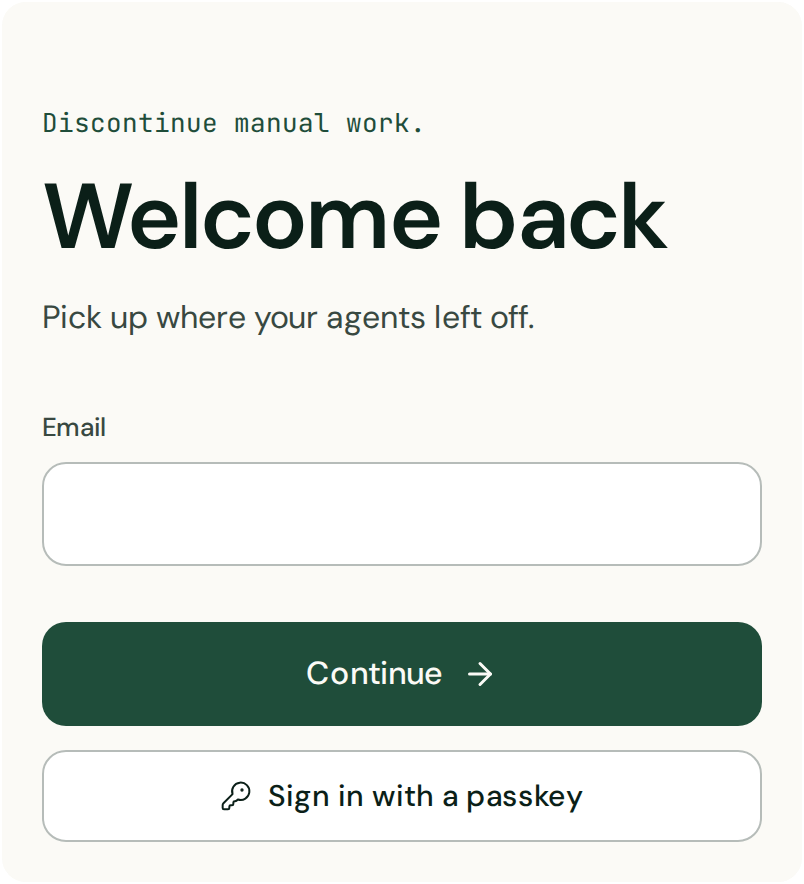
The first step asks only for your email address. -
Enter your password and select Continue.
-
With an authenticator app, the step Two-factor authentication follows. Enter the 6-digit code from the app. Without the app, select Use a recovery code instead and enter one of your recovery codes.
-
The app opens where you were going.
Sign in with a passkey
- On the first step, select Sign in with a passkey. Your browser may also offer your passkey when you select the Email field.
- Confirm with your fingerprint, face or device PIN. The app opens. A passkey needs no password and no code.
Good to know
- You stay signed in for up to 60 days, or until you have not used Discontinue for 7 days.
- After 5 wrong codes, the sign-in starts again from the email address.
- If your organization signs you in through its provider, the password step shows Continue with, followed by the organization's name. See Decide how your people sign in.
If something goes wrong
- "Invalid email or password": check the address and the password. After 10 wrong passwords in a row, the password is locked for 15 minutes. The answer stays the same while it is locked.
- A locked password sends you an email with a link to reset it. Forgot it? next to Password sends the same link. A new password works at once, also during the lock.
- A passkey, your company's sign-in and every browser that is already signed in keep working during the lock.
- "Too many sign-in attempts. Wait a few minutes and try again.": too many sign-ins came from your network. Wait, then sign in again.
The rules behind these tasks are in the reference, under Signing in and Password lock.